

Connection key
Paste and check
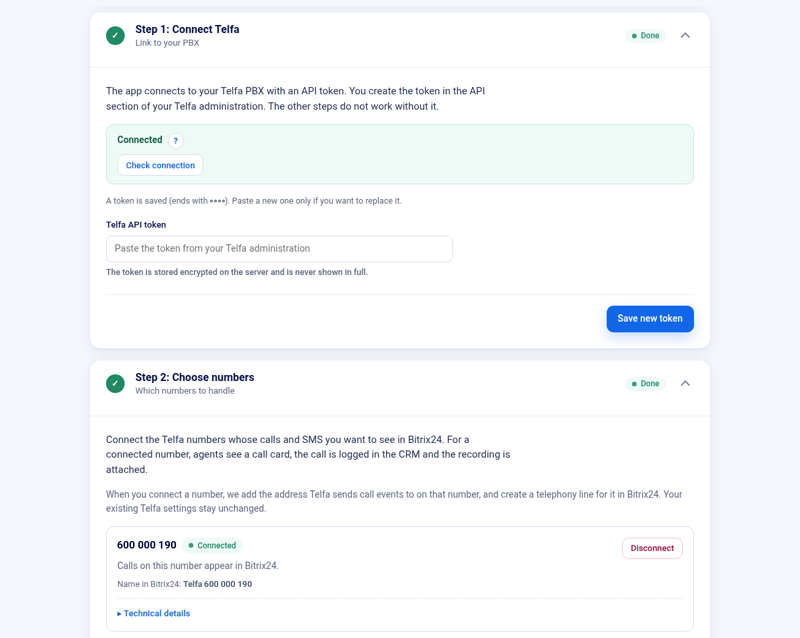
In the Telfa administration create an API token and paste it into Telfa API token. Use Check connection. A token Telfa rejects is not saved. If Telfa does not answer, the saved key is left as it was.
The field is «Telfa API token». The button is «Check connection», on the step «Connect Telfa».
Use a token from the Telfa administration that is allowed to read the numbers and users you want to connect. The app does not accept the token until Telfa recognises it.
When the check fails
- If Telfa refuses the token while reading (it does not recognise it), the new token is not saved. When a previous key is still valid, that key stays. When the saved key is already invalid, the app asks for a valid token.
- If Telfa does not answer (network, outage, or a temporary server error on the read), the token is not saved either. That is not the same as an invalid key. The message says Telfa is unavailable, and the saved key stays as it was.
- A refusal while writing a change does not by itself mark the key invalid. The key is marked invalid when a read is refused.
Do not send the token to support. Say which portal and what the screen showed.
Webhook consent
«Connect number» opens «Enable Telfa webhooks for this number». Confirming it appends our address for that number. Addresses that were already there are kept. The dialog also says whether an SMS webhook can be enabled for that number.
Each number has «Disconnect». Disconnecting stops calls from that number appearing in Bitrix24. Other settings in Telfa stay as they were.
«Replace the address for Telfa» is under «Advanced settings». Use it when you suspect the address Telfa sends calls to has leaked. The address is replaced on connected numbers. The previous one still works for a while.
Replacing the token
Paste a new token and check the connection again. The previous token is replaced only after the check succeeds. If Telfa refuses the new one, the previous valid key remains.